PDF auf dem Mac bearbeiten: praktische Anleitung für Text, Notizen und Seiten
Erfahren Sie, was Sie mit Vorschau bearbeiten können, wann ein PDF-Editor nötig ist und wie Sie das Ergebnis prüfen.
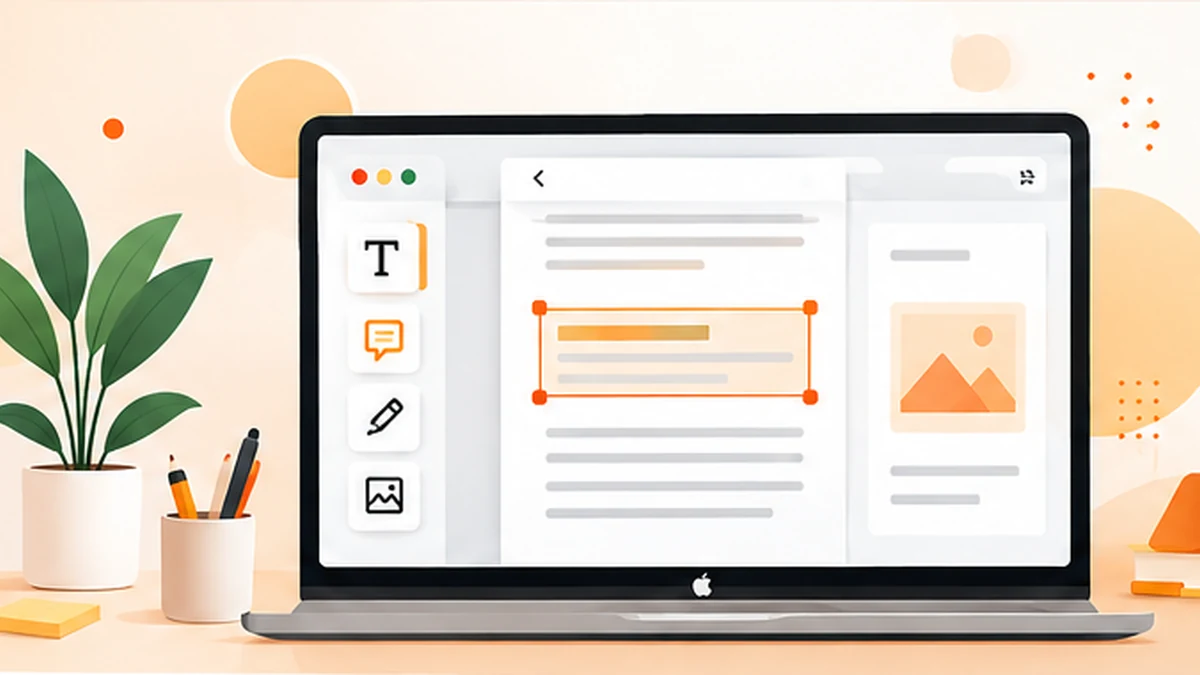
A PDF is designed to look consistent when it moves between devices, which is useful for sharing but can make editing feel less obvious than editing a Word document. On a Mac, you can often add notes, highlight passages, sign a form or rearrange pages without installing anything. Changing the original paragraph text is a different task, though, and the right method depends on how the PDF was created.
First, decide what “edit” means for your PDF
PDF editing can mean several different things: adding a comment, highlighting a sentence, filling in a form, placing a signature, rotating a page, deleting a page or changing the actual words already printed on a page. These actions are not interchangeable. A document with selectable text is usually easier to work with than a scan that is effectively a photograph of each page.
Before you start, make a duplicate of the original file. Use a clear name such as `proposal-edited.pdf` and keep the source unchanged until you have checked the result. This small habit makes it much easier to recover if an edit shifts the layout or removes something important.
Option 1: Use Preview for notes, highlights and signatures
- Preview is included with macOS and is a sensible first stop for simple changes. Open the PDF in Preview, then use the Markup toolbar to access tools for highlighting, drawing, text boxes, shapes and signatures. Depending on the document, you can also fill supported form fields and rotate or reorder pages using the thumbnail sidebar.
- To add a note, choose a text or shape tool from Markup and click where the note belongs. To sign a form, use Preview’s signature feature to create a signature with your trackpad or camera, then place it in the signature area. Save a copy when you are finished, close it, and reopen it to confirm the changes were retained.
What Preview does not always do well
Preview is not a full word processor for PDFs. It may let you place a new text box over a page, but that is not the same as editing a paragraph that already exists. If you need to rewrite several lines, change a table, replace a logo or preserve a complicated layout while altering original text, you may need a dedicated PDF editor or the original source document.
A scanned PDF creates another limitation: the page may contain only an image, not selectable characters. Optical character recognition (OCR) can convert the visible words into searchable text, but OCR can misread names, figures, columns and small print. Always proofread the recognized text before relying on it.
Option 2: Use an online PDF editor for a focused task
- An online tool can be convenient when you are using a shared Mac, do not want to install software, or need a specific operation such as adding text or a watermark. Check that the tool supports the exact edit you need; “annotate PDF” and “edit existing PDF text” often describe different capabilities.
- Think about privacy before uploading. A file may contain a signature, address, contract, financial details or client information. Read the service’s file-handling information and your organisation’s rules. If you cannot confirm that uploading is appropriate, use an approved local application or work with a redacted copy instead.
How to edit an existing paragraph
- If the words themselves must change, first check whether you have the Word, Pages or other original document used to create the PDF. Editing that source and exporting a new PDF is often the cleanest route because it preserves the document’s intended structure. If you only have the PDF, use a PDF editor that explicitly supports editing existing text and embedded objects.
- Expect to inspect the layout after changing text. Font substitution, line wrapping and missing embedded fonts can shift content or push a heading onto another page. A visually similar font is not a guarantee that the document is identical, particularly for forms, technical drawings or legal paperwork.
Review the file before you send it
- Read every edited page at normal size and zoom in on small text, tables and signatures. Check page order, orientation, hyperlinks, form fields and any comments you meant to keep. If the file will be printed, check margins and page breaks. If accessibility matters, also consider whether the PDF has meaningful reading order and selectable text.
- Finally, use a descriptive filename and share only the version you intended to publish. If the document contains confidential information, remember that drawing a white box over text does not necessarily remove the underlying data. Use a proper redaction feature when information must be permanently removed.
Frequently asked questions
Can I edit a PDF on a Mac for free?
Yes. Preview is included with macOS and handles many common tasks, including highlighting, notes, signatures, form filling and page rotation. Editing existing text may require a different tool.
Why can’t I select the text in my PDF?
The PDF may be a scan or image-only document. OCR can make scanned text searchable, but its output should be checked carefully.
Does adding a text box change the original PDF text?
Usually, a text box adds a new layer on top of the page. It does not necessarily replace the original text underneath.