PDF-Dateien teilen, ohne das Original zu verlieren
Erfahren Sie, wie Sie PDF-Seiten oder kleinere Dokumente erstellen und Seitenbereiche auswählen.
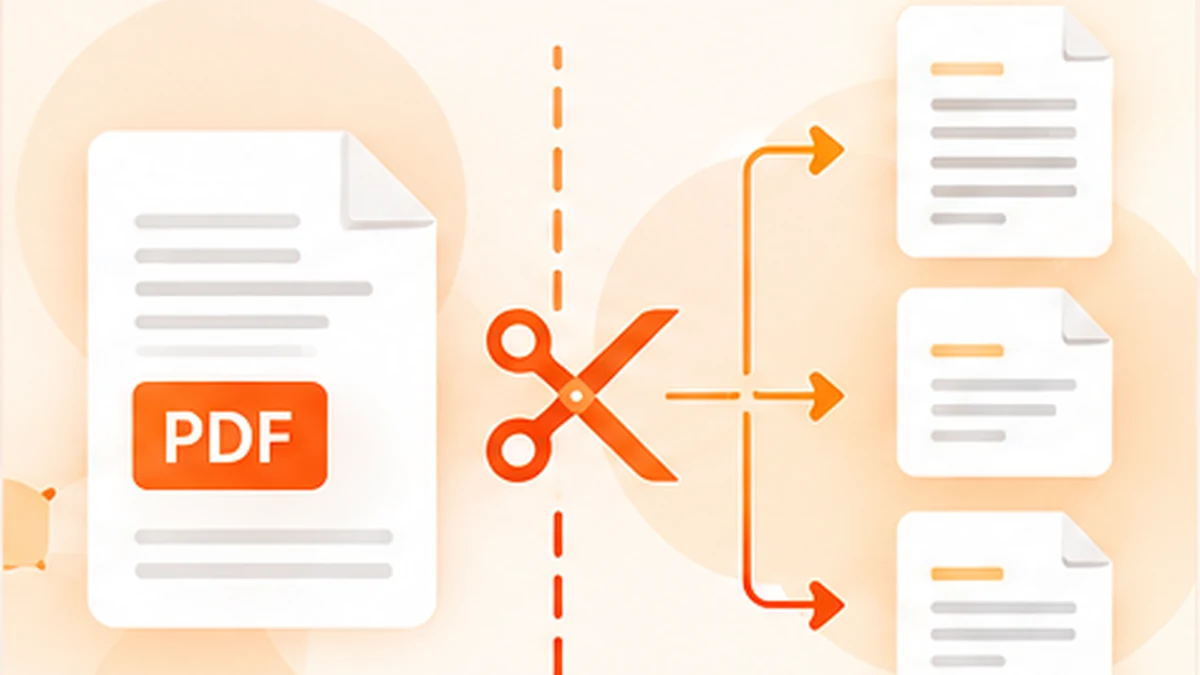
A long PDF is not always the best way to share information. You might need to send one chapter from a handbook, separate a few invoices, or create a smaller file containing only the pages relevant to a project. Splitting a PDF creates separate files from a larger document. With a little planning, you can do it without changing the source file or losing track of page order.
Split, extract or delete: know the difference
Splitting creates two or more separate PDF files from one source. Extracting saves selected pages into a new PDF while leaving the remaining pages in the original. Deleting removes pages from a document copy. These actions can sound similar, but they produce different results, so decide which output you need before choosing a tool.
For example, if a report has 40 pages and you need pages 8–12 for a colleague, extracting that range is usually enough. If you need every chapter saved separately, splitting by ranges or at regular intervals may be more convenient.
Step 1: Make a copy and identify the page ranges
Keep an untouched copy of the original PDF before you begin. Open the document and note the page numbers you want to separate. Be careful when the PDF has printed page numbers that differ from the viewer’s page count—for example, a cover page may be counted as page 1 even though the printed numbering starts later.
Write down the ranges in a simple list, such as pages 1–5, 6–12 and 13–20. For invoices or forms, check where one record ends and the next begins. A quick page-by-page review is usually faster than discovering later that a page was left in the wrong file.
Step 2: Choose a splitting method
A desktop PDF application may include page organisation or split options. Select the pages or ranges, choose how the output files should be named, and save them to a dedicated folder. Menu names differ by application, so look for page organisation, extract pages or split document options.
An online splitter can be convenient if you need a one-off task without installing software. Upload the PDF, choose the required page or range, run the split, and download the result. Before using an online service, check how it processes and retains files, particularly when the document contains personal or business information.
Step 3: Check the resulting documents
Open each output PDF rather than assuming the process succeeded. Confirm that the first and last pages are correct, the order is preserved, and no blank or duplicate pages were introduced. Check orientation, page size, links and form fields if they matter to your workflow.
Use meaningful filenames that explain the contents, such as `contract-signed-pages.pdf` or `invoice-april.pdf`. Avoid names like `final2-new.pdf` that become confusing when you have several files. If the documents will be archived, include a date or project reference where appropriate.
When splitting a large PDF, work in stages
Very large files can take longer to process and may be difficult to download over a slow connection. If you only need a few pages, extract them directly instead of generating dozens of unnecessary outputs. If a tool struggles with a large document, try a trusted desktop application or work with smaller ranges.
Password protection and permissions may affect whether a file can be split. Use the password and tools you are authorised to use; do not bypass restrictions on documents you do not own or have permission to modify.
A quick option: PDFDuniya PDF Split
For a simple online workflow, PDFDuniya’s PDF Split tool helps you save a selected PDF page as a separate PDF. Open the Split PDF page, choose the source file, select the page you want to separate, and download the resulting document. If your goal is to save a range of multiple pages, PDFDuniya’s Extract PDF Pages tool may be a better match.
Review the output before sending it, and keep the original until you are certain the separated files contain everything required. As always, check the privacy information before uploading a confidential document to an online service.
Avoid these common mistakes
The most frequent mistake is mixing up printed page numbers with the PDF viewer’s page count. Another is splitting a file without checking whether a signature, appendix or terms page belongs with the selected section. A file may also look correct in the thumbnail view while a page is rotated or unexpectedly blank.
The safest habit is simple: identify the page range, split a copy, open every result and confirm its contents. That short review protects against most page-order and sharing errors.
Frequently asked questions
Can I split a PDF without changing the original?
Yes. Most split tools create new output files. Keep your original file unchanged as a backup until you have reviewed the outputs.
Can I split a PDF into one file per page?
Many desktop and online tools support extracting individual pages or splitting every page into separate PDFs. Check that feature before starting.
What is the difference between Split PDF and Extract PDF Pages?
Split PDF commonly divides a document into separate files, while extraction saves selected pages as a new file. Exact options vary by tool.